


All platform features
See what you can do with Queast
Research companies relevant to your offering, prepare an approach and keep follow-up work moving. Explore the data, analysis, daily tools and integrations that support your sales workflow.
Feature catalogue
From account research to your next action
Open a feature’s detail page for its workflow and access requirements. On small screens, scroll sideways in the table to see every column.
| Criterion | What you can do | How it helps |
|---|---|---|
| Targeted job feed Research |
Work from job ads assigned to your workspace, targeted to your offering and desired customers. |
Start with relevant hiring activity instead of sorting unrelated vacancies. Job-market data ↗ |
| Job search and filters Research |
Search titles, descriptions and companies. Include or exclude terms, filter by technology or industry, and sort by relevance or publication date. |
Narrow the feed to the skills and work connected to your sales focus. Job-market data ↗ |
| Job and company context Research |
Open the role description, supplied requirements, technology labels and company context together. |
Understand the work being staffed without rebuilding the account background around each vacancy. Job-market data ↗ |
| Job bookmarks and claims Research |
Bookmark a role to return to it, or claim it to show that you are handling it. Find it again in Bookmarked or Claimed. |
Keep useful roles and your current work easy to find. Job-market data ↗ |
| Company job assignment Research |
Assign an available role from a company’s Open roles to your workspace. Assignment counts toward your monthly job quota. |
Bring a company vacancy into the workspace for further research and follow-up. Job-market data ↗ |
| Company profiles Research |
Check available business descriptions, industry, headcount and headquarters. Open related hiring, people, news and technologies from the company record. |
Assemble the account picture with fewer separate searches. Company data ↗ |
| People search Research |
Search displayed company contacts by name or title and use role and country filters. The full People list opens after a company job is assigned to your workspace. |
Move from an interesting company to a relevant person within the same account research. People and contact data ↗ |
| Contact details Research |
Use available email, phone and LinkedIn controls, with email verification details when recorded. Company and job views hide email controls for German-headquartered companies. |
See which contact routes are available without looking up the same person again. People and contact data ↗ |
| Company news Research |
Open linked company articles and see the latest available coverage for bookmarked companies on the dashboard. |
Keep account developments close to your research instead of repeating company-news searches. News and social context ↗ |
| Technology hiring context Research |
See technologies mentioned in collected company job ads, their job-ad counts and dated recruitment history where available. |
Connect technical hiring needs to your offering without tallying separate vacancies. Technology data ↗ |
| Company analysis Analysis and recommendations |
Read the available SPICED IT seller view: a discussion angle, possible IT impact, timing clues and likely people or roles to approach. |
Start account preparation from an assembled interpretation of the company context. Company analysis ↗ |
| Smart Signals Analysis and recommendations |
Receive account recommendations connected to your confirmed delivery capabilities and target customers, with a reason and suggested next step. Available for IT Services workspaces with Smart Signals enabled. |
See why an account relates to work you can deliver. A recommendation does not confirm budget or willingness to use an outside supplier. Smart Signals ↗ |
| Person Approach Briefs Analysis and recommendations |
Read a summary, suggested opening, talking points and watch-outs drawn from available profile information and posts. |
Bring the recipient’s professional context together before composing an approach. Person Approach Briefs ↗ |
| Account and contact selection Daily Workbench |
In workspaces with Daily Planner enabled, review available accounts, job ads and suggested stakeholders, then select which work to launch. |
Choose the opportunities and people that enter your daily task queue. Daily Workbench ↗ |
| Outreach sequences Daily Workbench |
Choose an available sequence of LinkedIn actions or LinkedIn and email steps. Load your selected work into Daily Workbench. |
Keep the next action in view while you carry out the outreach in your external tools. Daily Workbench ↗ |
| Due-work queues Daily Workbench |
Use Today and focused views for messages, LinkedIn actions or calls, with account context beside the task. Calls require enabled call steps and available phone data. |
Group due work around the channel you are using, with less task-list sorting. Daily Workbench ↗ |
| Task outcomes Daily Workbench |
After acting in your external tool, mark a task done, snooze it until tomorrow or skip to the next step. The Done view keeps recorded times, actors, outcomes and details. |
Return to a record of completed work without piecing it together from separate notes. Daily Workbench ↗ |
| Drafts from account context Messaging |
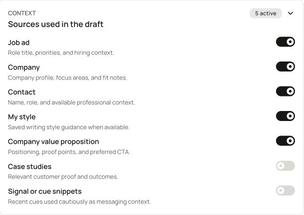
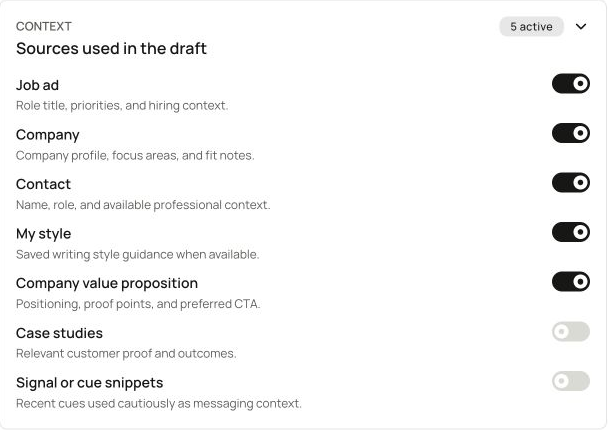
Start from a job’s company, vacancy and available contacts, or select the context in Messaging. Generate an editable subject and message. |
Prepare a first draft with less information to copy into a blank prompt. Messaging and preparation ↗ |
| Message drafting controls Messaging |
Choose a template, sources, channel, language and length. Add relationship context or instructions before generating the draft. |
Shape the wording around the approach you intend to make. Messaging and preparation ↗ |
| Saved offer and writing style Messaging |
Workspace admins save the value proposition, target audience, tone and writing guidance. Pasted message examples can become an editable style summary. |
Reuse your team’s positioning and style instead of restating them for every draft. Messaging and preparation ↗ |
| Save, copy or open in Gmail Messaging |
Save a draft with a selected job ad or contact, copy it into your own tool, or open Gmail with an available recipient email, subject and message filled in. |
Take prepared wording into your sending workflow. You review, edit and send it yourself. Messaging and preparation ↗ |
| Integration setup Integrations |
Workspace admins configure HubSpot, Pipedrive and Webhooks where integrations are enabled. New Smart Signals automatically queue exports to active connections. |
Set up where account context goes as recommendations are created. Integration setup and access ↗ |
| HubSpot Integrations |
Export company information and available contacts with work email, plus a follow-up task carrying the Smart Signal summary and Queast links. |
Keep the account context beside follow-up work in your CRM. HubSpot integration ↗ |
| Pipedrive Integrations |
Bring a company and available people with work email into Pipedrive, with an open follow-up activity and Smart Signal note. |
Continue account work without recreating its context in the CRM. Pipedrive integration ↗ |
| Slack notifications Integrations |
Configure Slack notifications separately to receive grouped job assignments and, where enabled, Smart Signal summaries in a team channel, with links back to Queast. |
Share updates with colleagues without manually reposting each record. Slack notifications ↗ |
| Webhooks Integrations |
Send new Smart Signal and company context as JSON to an endpoint your team controls. |
Your receiver can create records or route follow-up work without copying the summary between tools. Webhooks ↗ |
See the workflow
Explore the features that fit your sales work
Book a demo to discuss your offering, target customers and current tools, and see how the relevant Queast features work together.