

Job-market data

Find hiring that fits the work you sell

Queast brings targeted job ads into your workspace, with role descriptions, technical requirements and company context. Narrow the hiring activity to your offering and target accounts, with less time spent sorting unrelated vacancies.

Your job feed

Find the roles worth opening

The Jobs feed contains vacancies assigned to your workspace. Use search and filters to narrow that selection to the work, technologies and companies relevant to your sales focus.
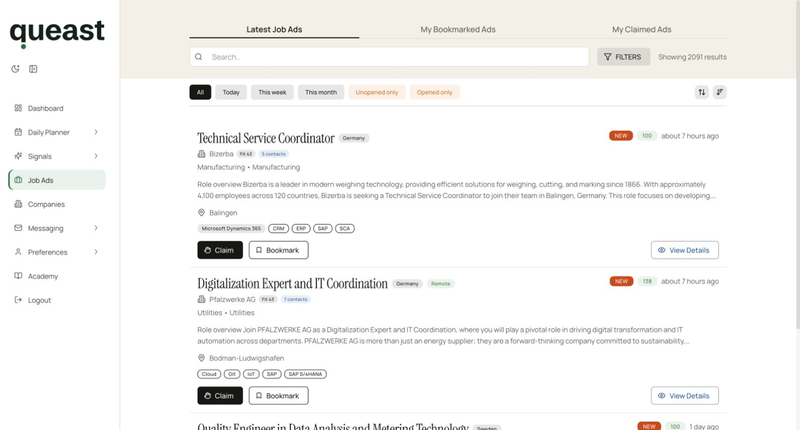
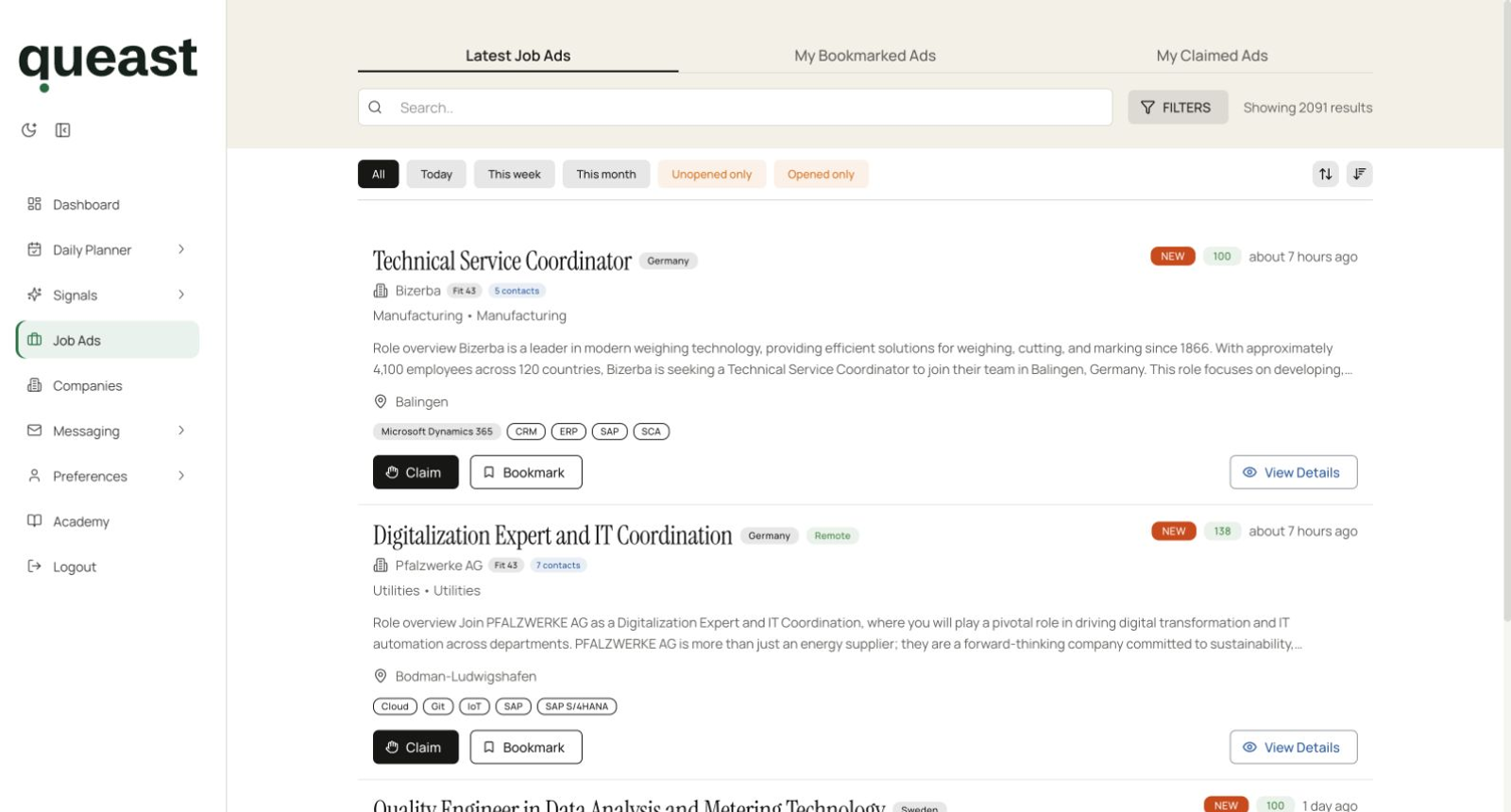
Job feed with search, Filters, saved and claimed tabs, and job cards showing company, role, technology labels and follow-up controls.
Your job feed Search and filters sit above the job list. Each result brings the role, company and technology labels together, with controls to claim, bookmark or open it. View screenshot at full size
  • Search the work Search job titles, descriptions or company names. Include or exclude terms in the title and description, and choose whether included terms must all match or any one can match.
  • Filter the environment Narrow by technologies, industry and subindustry. Choose a job type or a remote, hybrid or onsite work setting.
  • Catch up on your feed Show jobs assigned today, this week or this month, and separate opened from unopened records. Sort by relevance or publication date.
  • Focus on saved accounts Use the Bookmarked companies filter to see jobs at companies you have saved.

The job record

Read the role beside its company

Open a job to read its description and any supplied responsibilities, requirements and technology labels. The record brings together available dates, location, company information and people, reducing the separate searches needed to put the role in context.

Explore company profiles
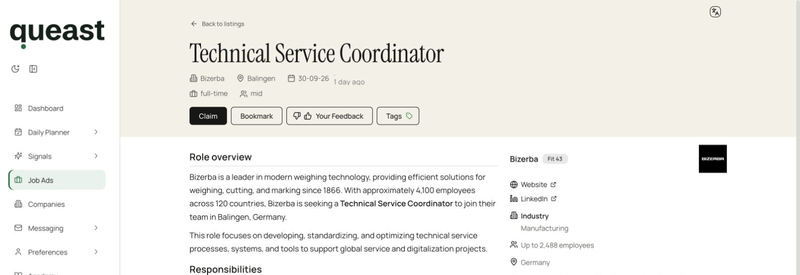
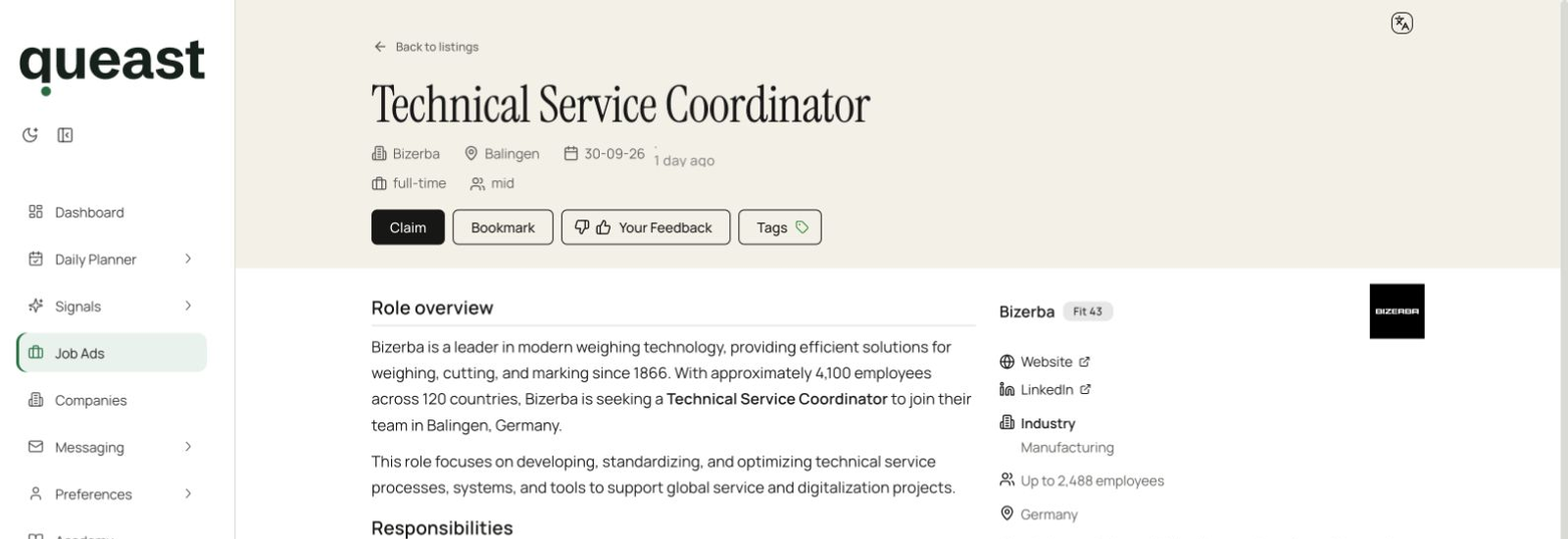
Job detail with a role overview, employment type and experience level beside company details and a View company button.
The job record The role overview sits beside a company summary and a link to the full company profile, keeping the hiring context together. View screenshot at full size
  • Bookmark for later Save a job you want to return to. Find it again in the Bookmarked tab without rebuilding your search.
  • Claim the job Mark that you are handling the job and return through the Claimed tab. The record shows who has claimed it.
  • Assign another company role From a company’s Open roles, use Assign to add an unassigned job to your workspace. This counts toward your monthly job quota.

Illustrative example

Connect the vacancy to work you can deliver

A role can reveal a useful connection between your offering and a target account. The vacancy alone does not establish willingness to use an outside supplier.

See how Messaging uses job context
  1. Your offering and target

    An infrastructure staffing provider supplies VMware and network engineers to UK retail chains.

  2. The relevant vacancy

    A UK retailer’s Systems Administrator ad asks for VMware experience and responsibility for branch networks. It connects the seller’s skills with the kind of company they serve.

  3. Preparation with context

    From the job detail, Generate message opens Messaging with the job, company and available contacts. The seller can prepare an approach about covering the branch-network work without re-entering that context.

Next step

Find an account connected to your offering

Request a free Smart Signal for your offering and target customers. The next step opens a form about your business and fit for the offer.